Block websites, apps and lock down client PCs
In Thiết lập, the Web Control, App Control and Phân quyền (Permissions) tabs block bad websites, block cheat / mining software and lock system features on client PCs.
Block websites
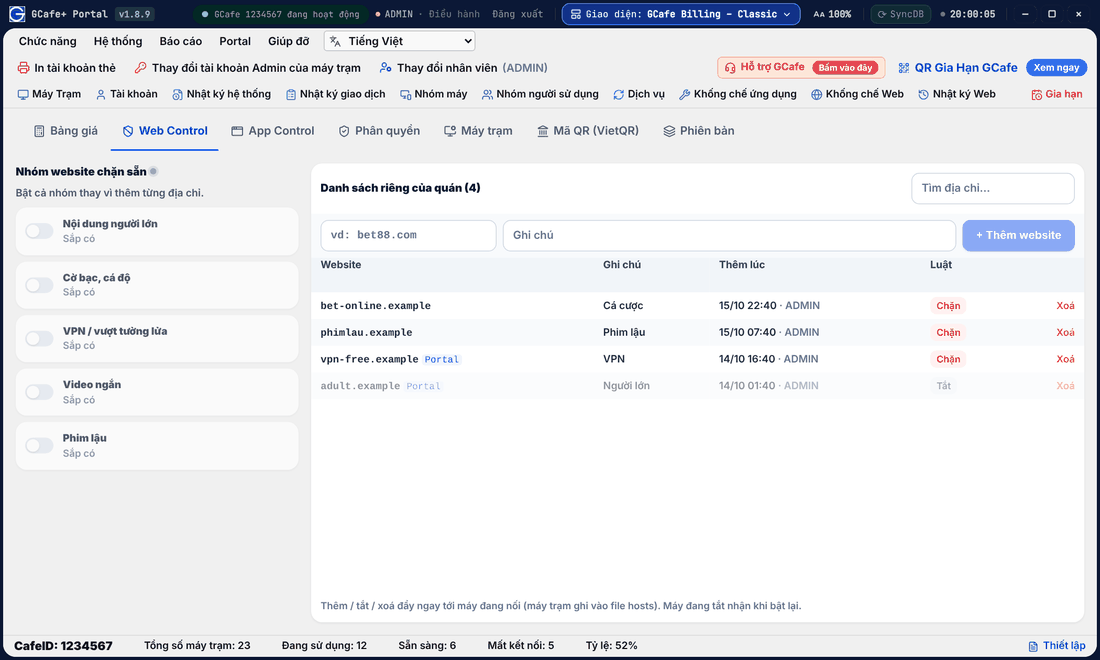
Classic layout
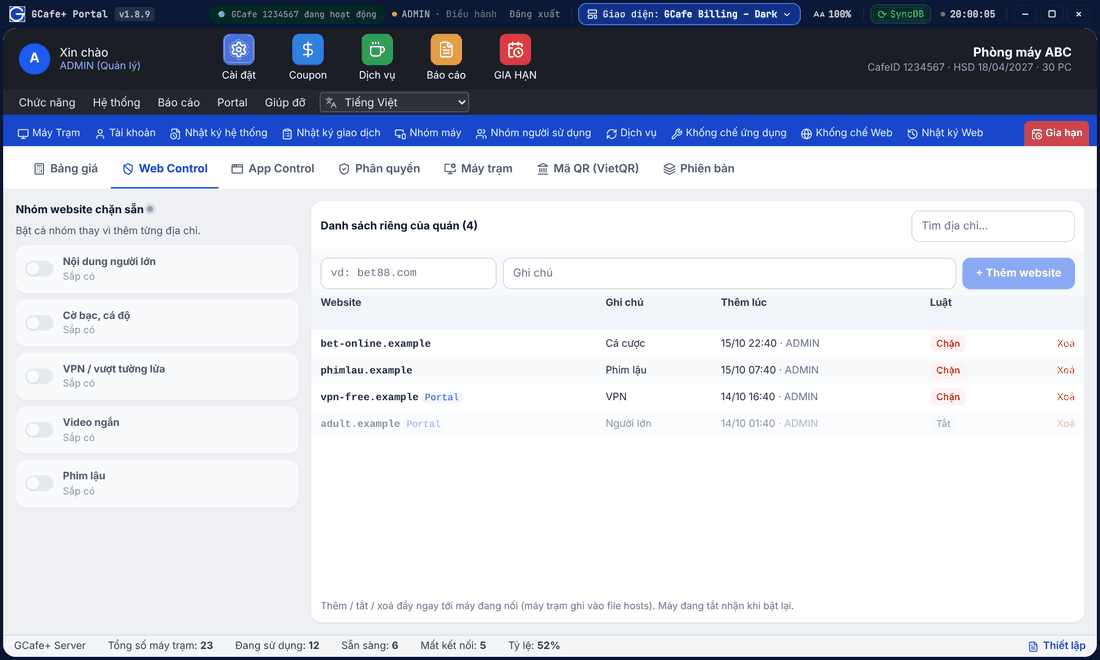
Dark layout
Portal layout
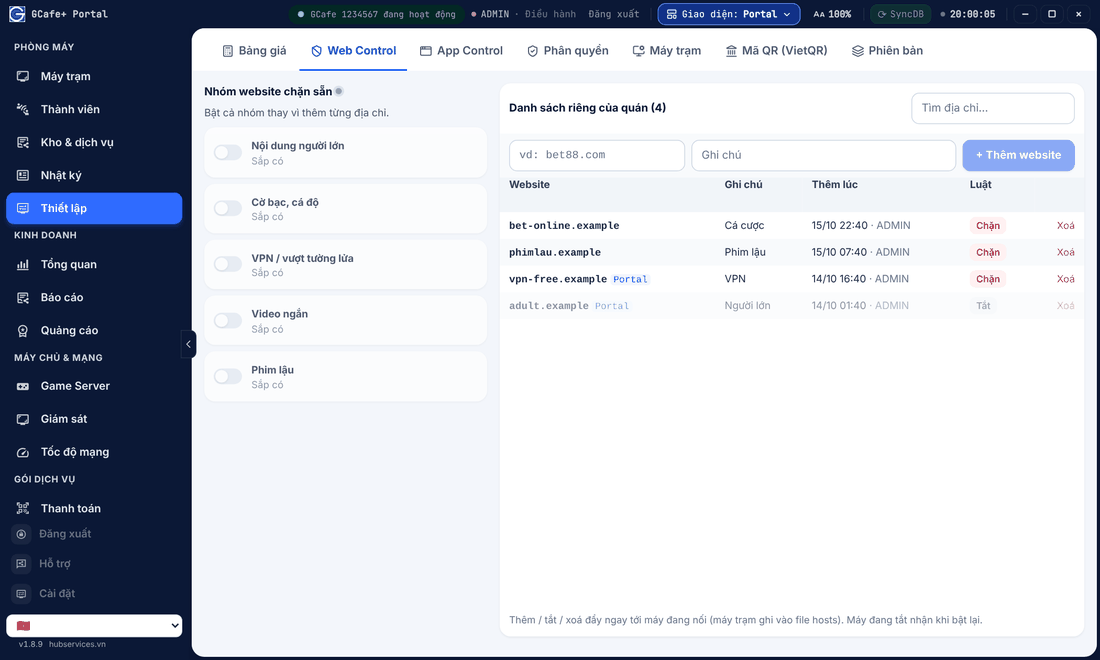
- Open Thiết lập › Web Control.
- Enter an address (e.g. bet88.com), a note, click + Thêm website.
Result: the block is pushed to running PCs immediately; switched-off PCs get it on next start. You can also block from Web history.
Block applications
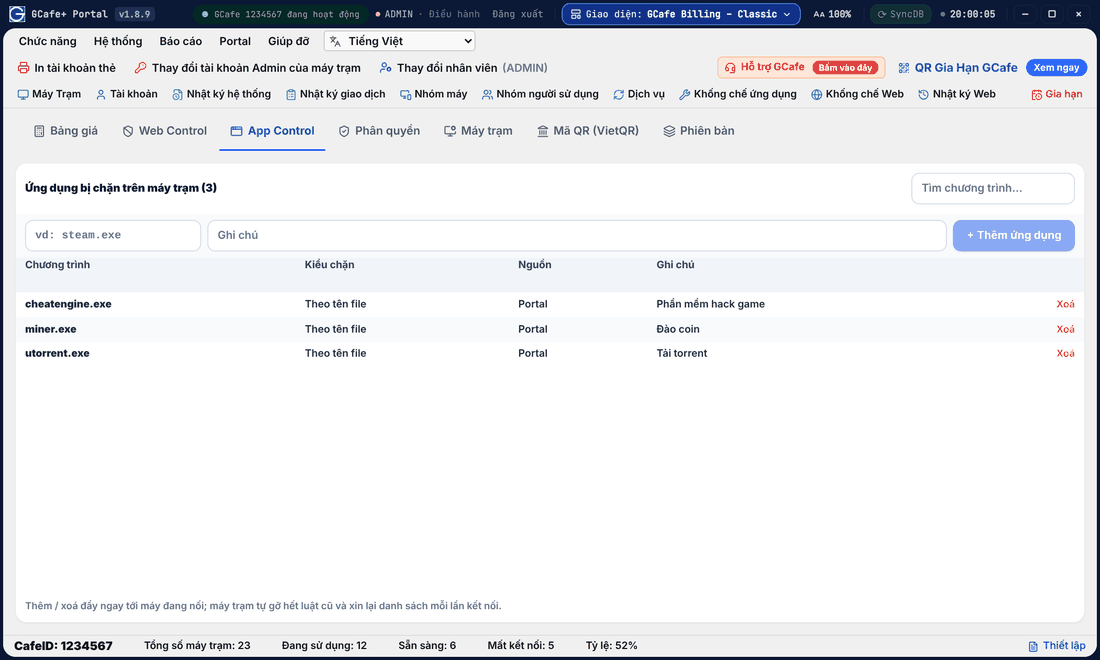
Classic layout
Dark layout
Portal layout
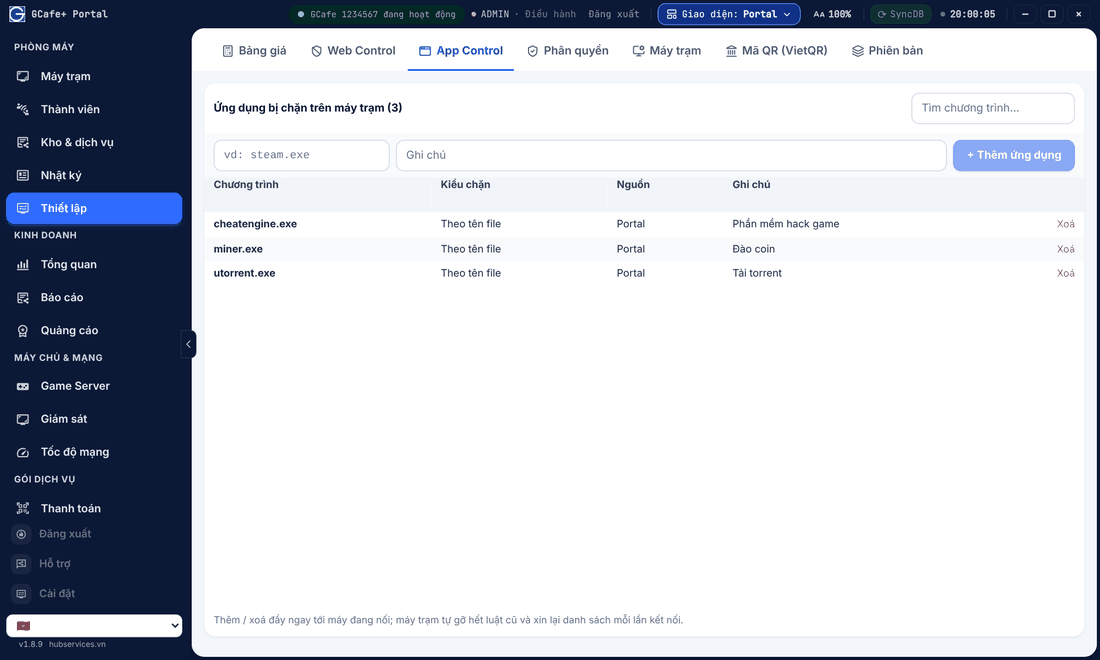
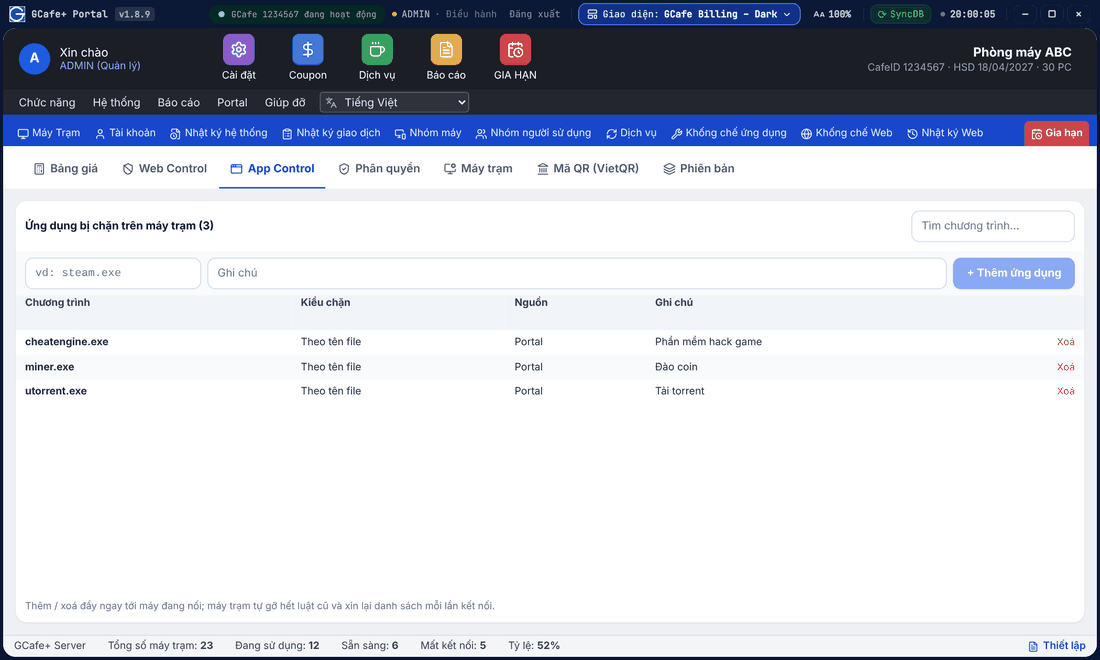
In App Control › Bị chặn (Blocked), enter a program name (e.g. steam.exe), click + Thêm ứng dụng. Ngoại lệ khi đóng ứng dụng (Close-apps exceptions) keeps listed programs open when you use Close apps.
Lock system features on clients
Classic layout
Dark layout
Portal layout
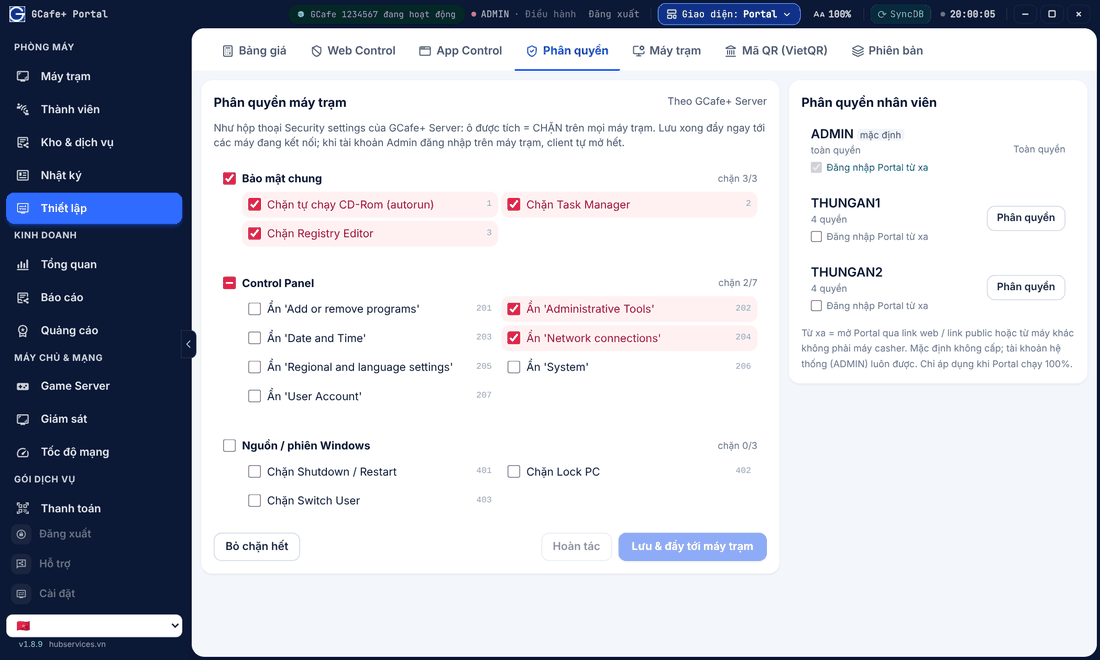
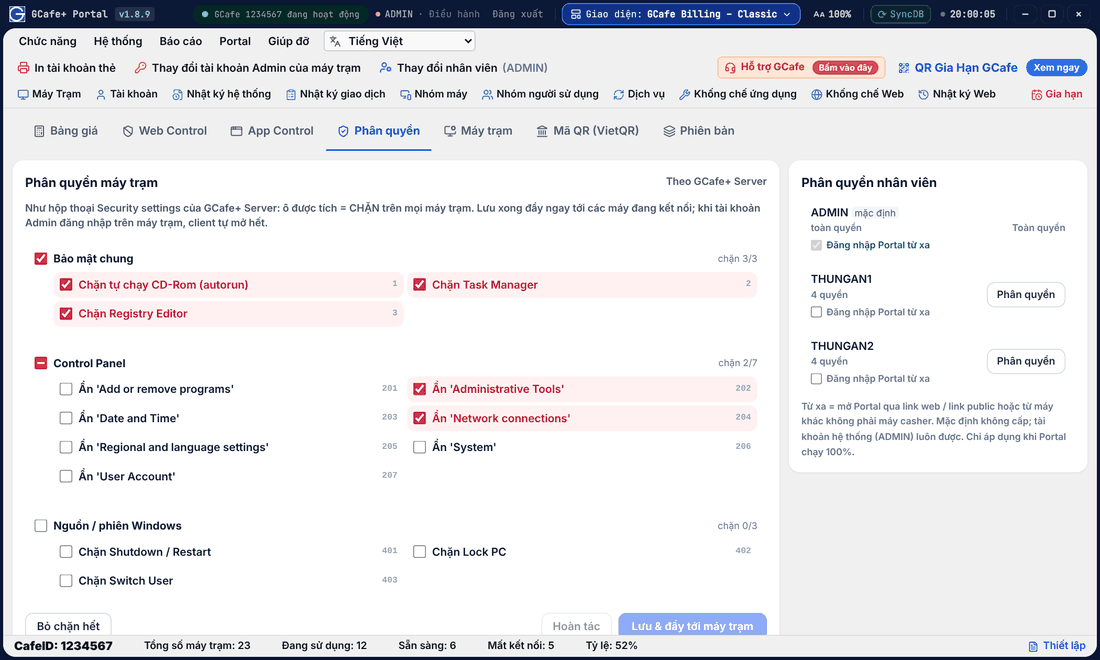
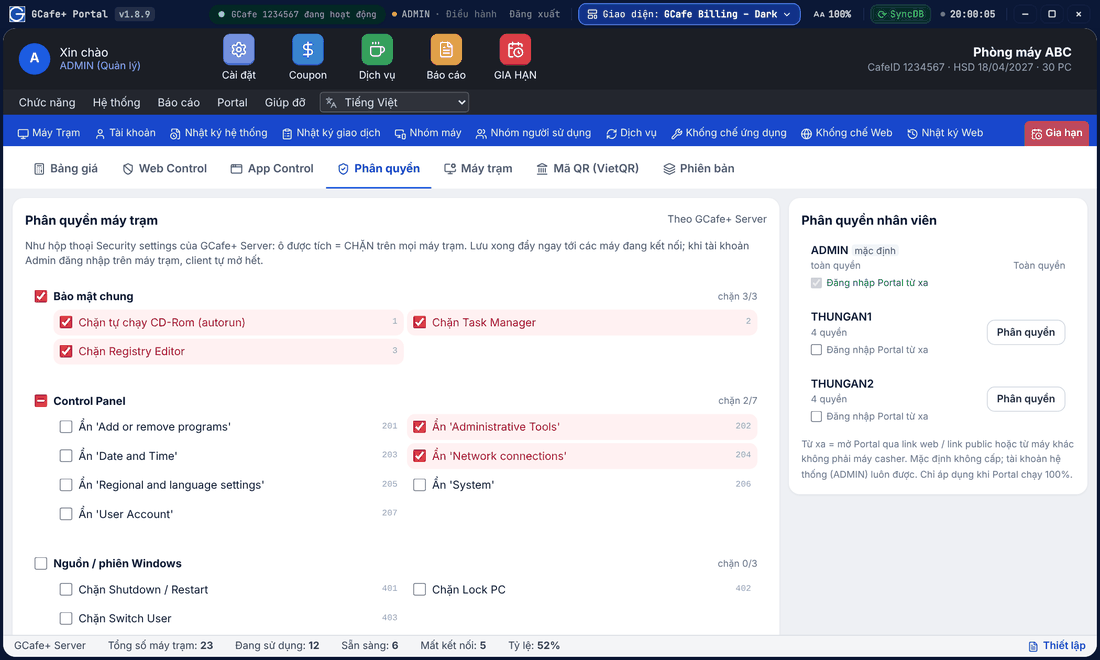
In Phân quyền › Phân quyền máy trạm (Client permissions), tick what to block (Task Manager, Registry Editor, Control Panel items, shutdown / restart…) and click Lưu & đẩy tới máy trạm (Save & push). Bỏ chặn hết unblocks everything.
⚠️ Note: When a Manager account signs in on a client PC, blocked items are temporarily opened for maintenance.