Chat with client PCs and sound alerts
The Chat tab gathers every message from clients: questions, food orders, top-up requests, staff calls. Reply right in Portal and hear a sound when something new arrives.
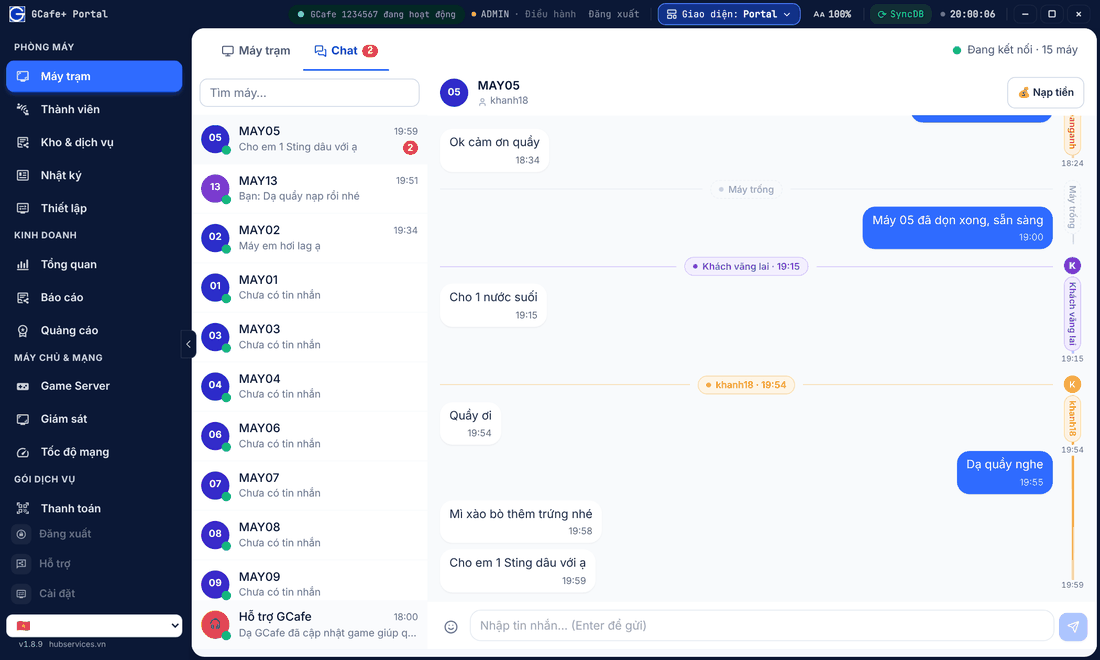
Reply to a guest
▶ Short video: replying to a client message.
- Open Máy trạm › Chat. The unread count shows next to the tab name.
- Pick a PC on the left.
- Type and press Enter to send.
Top-up requests
When a client sends Xin nạp tiền (Top-up request), the message has a Nạp tiền button with the current balance. Enter the amount and click Nạp; otherwise click Từ chối (Reject).
No need to wait for a request: click Nạp tiền at the top of a signed-in PC’s chat to top up without leaving the chat. Every top-up is recorded in the transaction log with the operator’s name.
In the GCafe Billing layouts, chat is under Chức năng › Chat máy trạm.
Turn sound alerts on or off
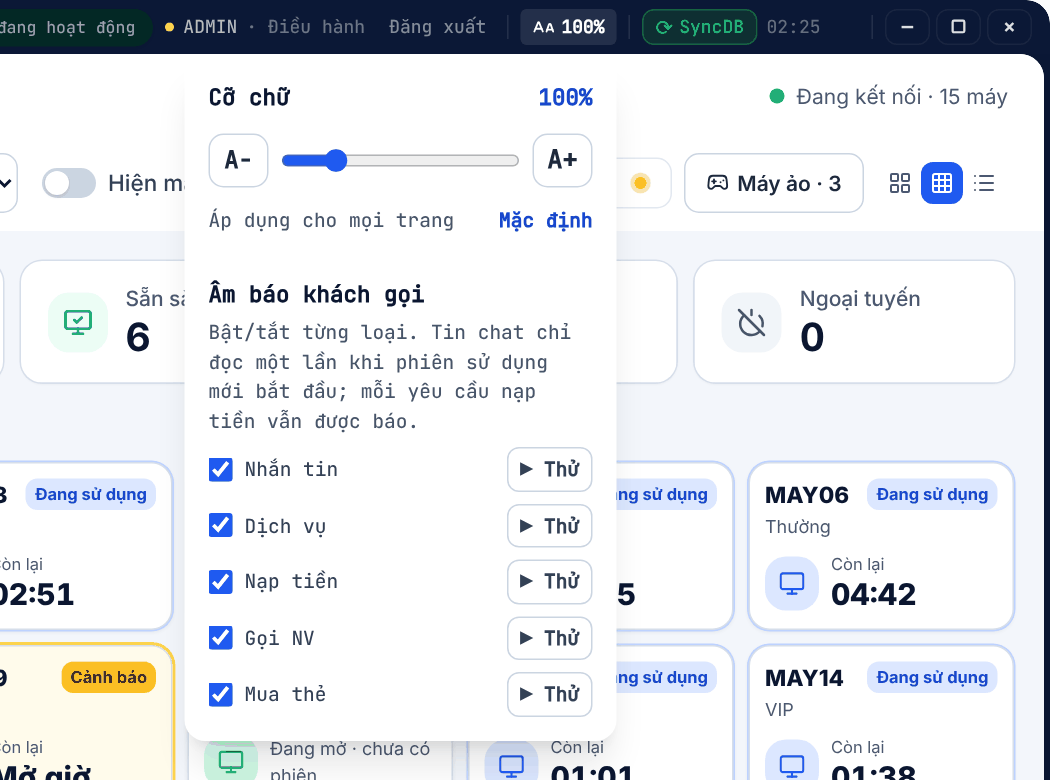
- Click AA 100% in the title bar.
- Under Âm báo khách gọi, tick the types to hear: Nhắn tin, Dịch vụ, Nạp tiền, Gọi NV, Mua thẻ. Click Thử to test.
When Portal is minimized, a small Chat Dock window pops up whenever a client writes, so you can reply without reopening Portal.
💡 Tip:Hỗ trợ GCafe at the bottom of the chat list goes straight to the support team. See Contact support.
Common errors
Message / symptom | Cause | What to do |
|---|---|---|
No sound | That type is unticked, or server speakers are off. | Tick it again under AA 100%, click Thử; check speakers. |
Máy chưa có phiên nạp được | The PC is not signed in or not opened. | Open the PC or let the player sign in first. |
Chat history per guest
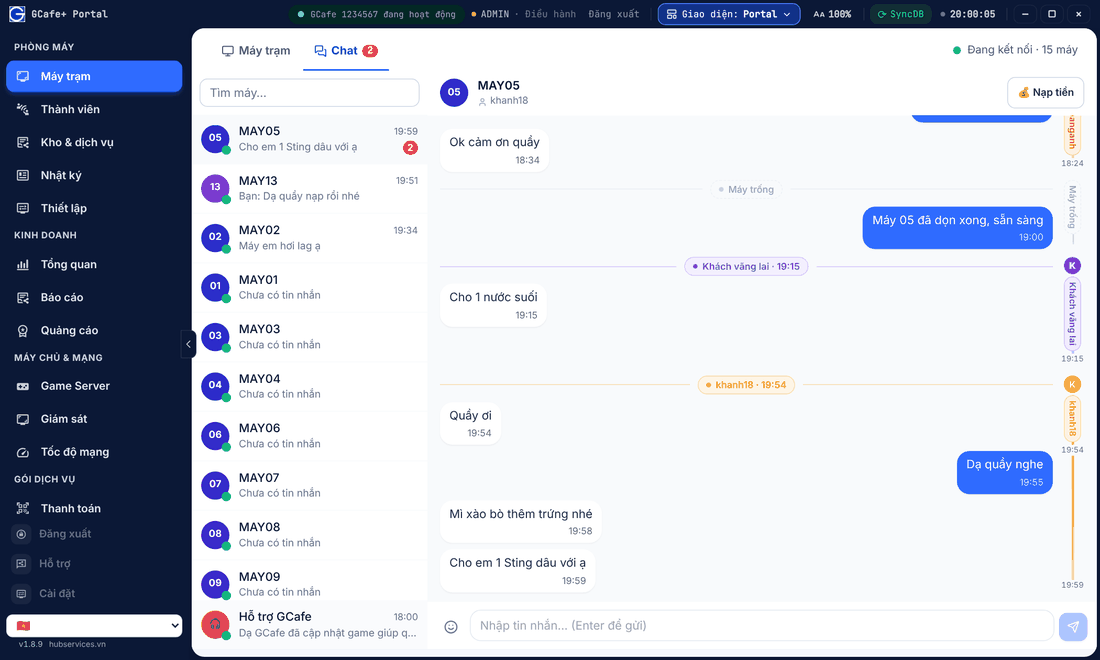
A PC’s chat history is split by the guest sitting there, with a timeline on the right (guest name or Máy trống (idle), message count). A new guest only sees their own conversation. In the Classic / Dark layout, choose Chat với máy in the right-click menu to open Chat Dock.
Running alongside the legacy GCafe Billing? See Chat and quick top-up alongside GCafe Billing.