Two ways to use: full Portal or alongside legacy
GCafe Portal can bill by itself instead of GCafe+ Server (recommended), or run alongside the legacy GCafe Billing to help with chat and quick extension.
Classic layout
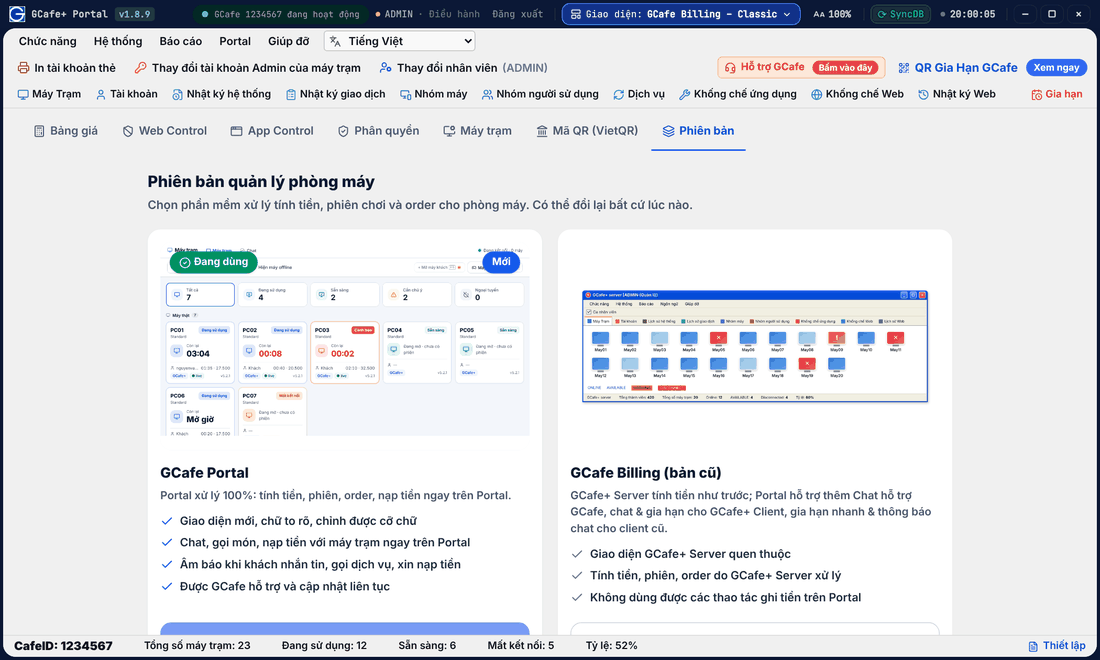
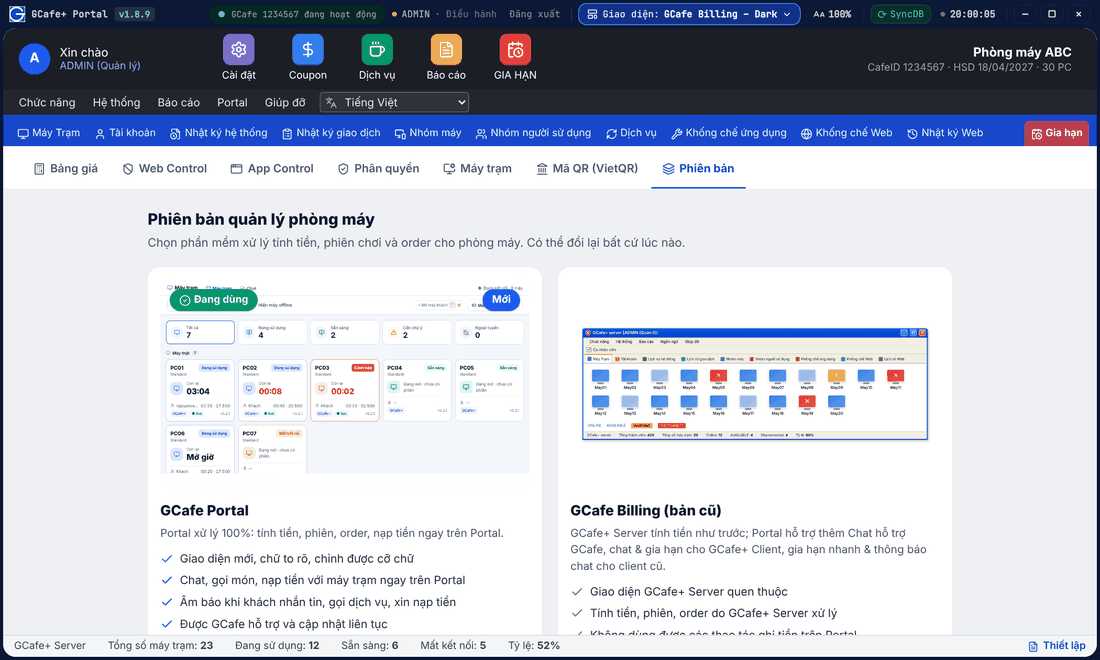
Dark layout
Portal layout
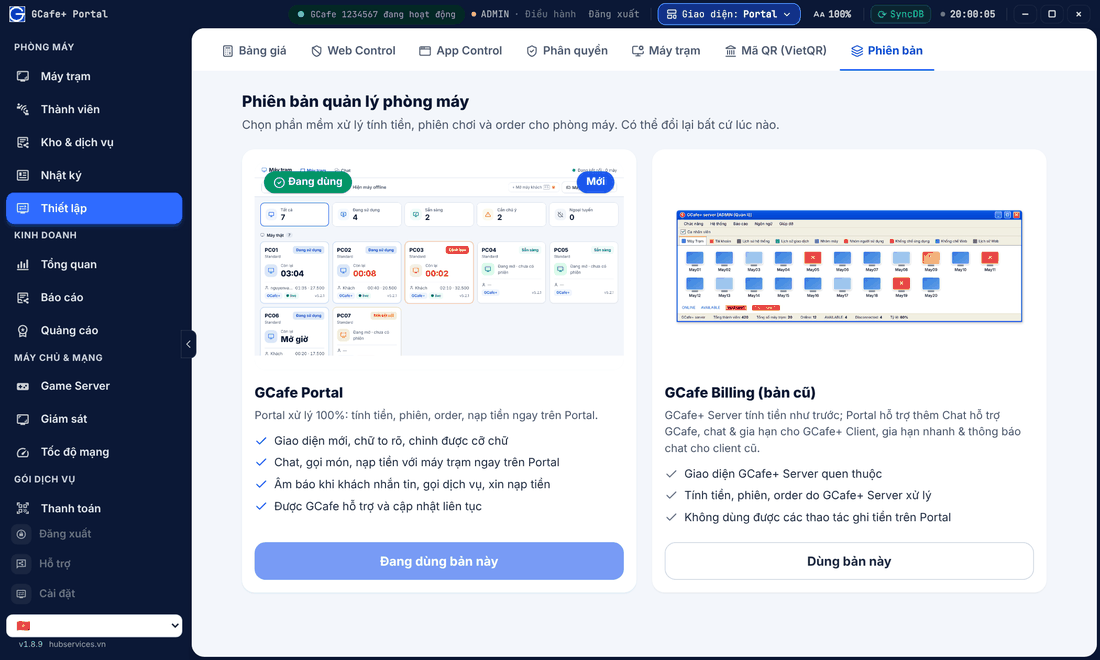
Compare the two ways
GCafe Portal (recommended) | Alongside legacy GCafe Billing | |
|---|---|---|
Billing, opening PCs, top-ups, orders | Done in Portal | Done in GCafe+ Server |
Stock, promotions, counter sales, lucky wheel | Yes | No |
Restart, shut down client PCs from Portal | Yes | No (use GCafe+ Server) |
Chat with client PCs, GCafe Support | Yes | Yes — with alerts and quick top-up when guests chat in GCafe Billing |
Reports, ads, Windows licences | Yes | Yes |
Layout | Classic, Dark or Portal | Familiar GCafe+ Server |
How to tell you are on legacy
Alongside the legacy GCafe Billing, Portal buttons that record money (open a guest PC, check out, top up, collect order payment…) show a yellow dot. Hover it to see Cần phiên bản mới (needs the new version).
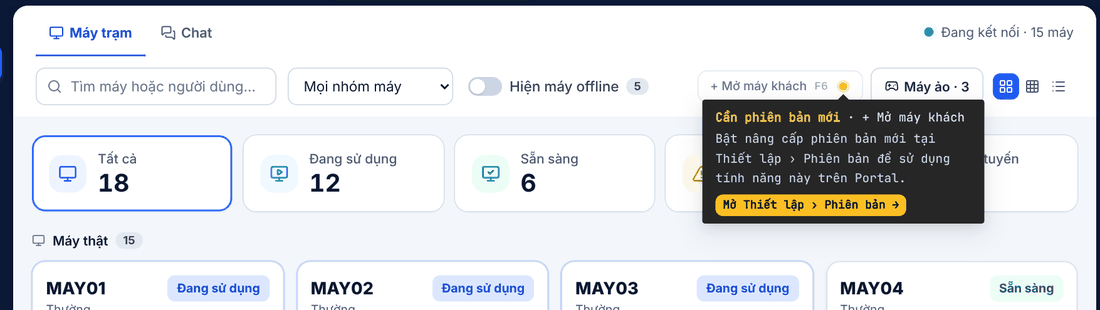
Switch the way you use Portal
- Open Thiết lập (Setup) › Phiên bản (Version).
- Click Dùng bản này (Use this version) on the version you want.
- Answer a few feedback questions (rating, reason), click Xác nhận chuyển (Confirm switch).
Result: Portal shows Đã chuyển phiên bản (version switched). You can switch back at any time.
⚠️ Note: Only the Điều hành (Manager) account can switch versions. Client PCs may disconnect for a few seconds, so switch when the shop is quiet.
💡 Tip: Running alongside legacy? See Chat and quick top-up alongside GCafe Billing.